The Elevate Registration API provides a method for you to take registrations on your AMS and have the registration records be pushed to Elevate LMS in real time. To achieve this, your AMS needs to be able to program custom actions that will occur when users register so that the related information can be sent to Elevate LMS.
How Does the API Work?
When your system calls Elevate LMS' Registration API, Elevate LMS will look to match up the user information with an existing user (using the Unique User ID that is also part of the SSO integration), and then Elevate LMS will either update the user's local record or create a new local user record. Then, it will register that local user for the product.
Before we discuss the next steps, let's first explore which route you want to take.
Route 1
User browses on Elevate LMS and purchases on AMS store.
Route 2
User browses and purchases on AMS store and after, then brought to Elevate LMS for engagement.
Registration API: Route 1
When User browses on Elevate LMS
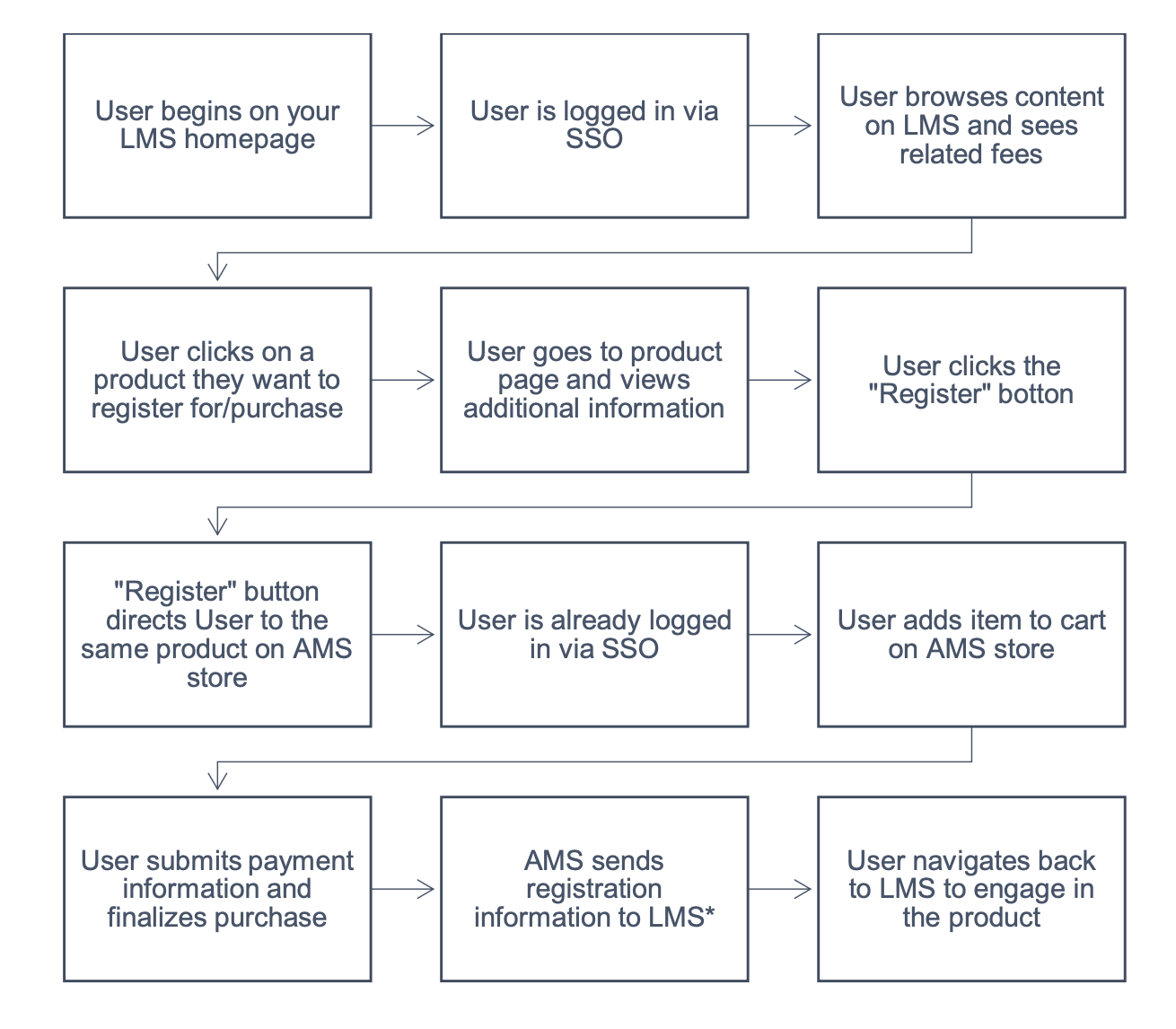
Things to Consider in This Approach
- All products for sale on Elevate LMS will also have to be created and set up on the AMS store.
- All products for sale will have to be connected between Elevate LMS and the AMS store.
- The user will bounce between the LMS and the AMS store and back to the LMS for engagement.
*See Programming Details
Registration API: Route 2
When User browses on your AMS
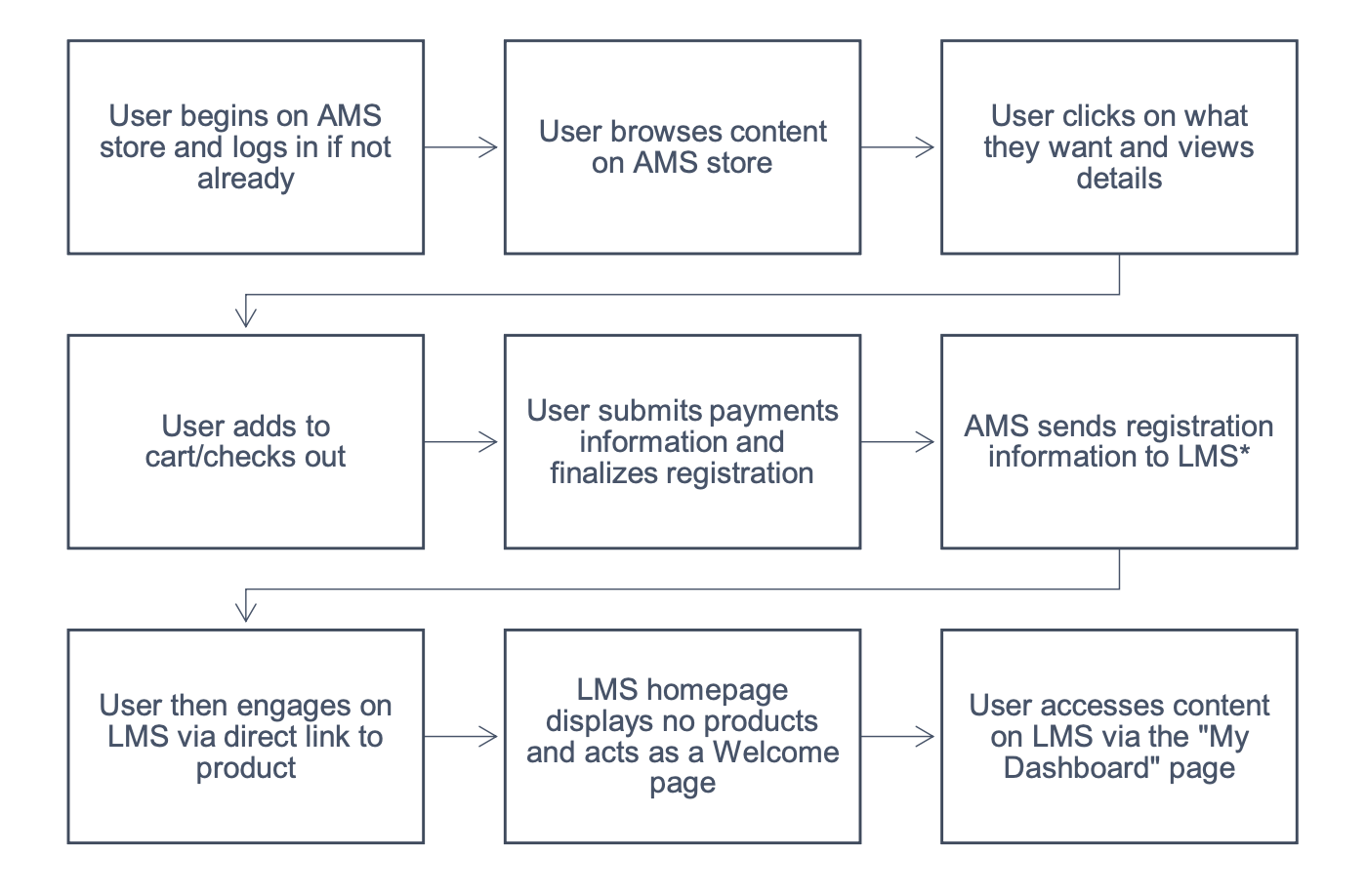
Things to Consider with This Approach
- All products for sale on Elevate LMS will also have to be created and set up on the AMS store.
- All products for sale will have to be connected between Elevate LMS and the AMS store.
- The user will begin on AMS store but engage in the activity on the LMS.
- All Elevate LMS features such as the catalog page, tagging of content, site layout widgets, etc. will be unusable as you are using AMS store to do these functions.
*See Programming Details
Programming Details
Your AMS will POST some JSON data, as the body of an HTTPS POST, to the API URL, as described below, for each product registered.
Example JSON Data
{
  "api_key": "API_KEY_HERE",
  "remote_user_id": "UNIQUE_USER_ID",
  "firstname": "USER_FIRST_NAME",
  "lastname": "USER_LAST_NAME",
  "email": "USER@DOMAIN.COM",
  "remote_product_id": "REMOTE_PRODUCT_ID",
  "amount_paid": "0",
  "send_email": true
}
Field Descriptions
- Fill in values for
firstname,lastname,email, andremote_user_idthat match the buyer's user information. - The
remote_user_idwill be a value that is unique for each user, and it must be the same value used to identify the user in the SSO setup. - The
remote_product_idwould be the ID of the product on the AMS, which will also be entered into the Remote Product ID field in the Elevate product as well. amount_paidwill be a numeric value, integer or decimal. If you do not need to store dollar amounts in Elevate reports, you can send "0.00" for everything, as the real accounting would be in your AMS.- Lastly, you can add an optional parameter
send_email = trueand Elevate will send the buyer a confirmation email with a link to the product.
Impexium requires alternate info to be provided if necessary.
Programming Details – Response
When you POST your JSON data, you will get a JSON response that looks like this:
{
  "product_url": "https://demo.elevate.commpartners.com/products/live-test-l5?force_login=1",
  "registration_id": 583919
}
If it is successful, the response will have two values:
product_url— the URL of the product page in case you wish to make links to the product in the user's account page somewhere.registration_id— the ID of the registration on this end, which can be used later if you plan to use the Cancellation API.
Tracking Errors
If the call is not successful, Elevate will send a response with error_messages, which will detail why the registration could not be completed. An example error is below:
{
  "error_messages": {
    "product": "The requested product could not be found."
  }
}
Programming Details – PHP Example
This example is in PHP. You will program the same functionality in your own programming language.
<?php
ini_set('display_errors', 1);
error_reporting(E_ALL);

// set up all request values in array
$request_array = array(
  "api_key"           => "API_KEY_HERE",
  "remote_user_id"    => "123456",
  "firstname"         => "Testfname",
  "lastname"          => "Testlname",
  "email"             => "ttestlname@domain.com",
  "remote_product_id" => "ABCD1234",
  "amount_paid"       => "0"
);

// encode array to JSON text
$json_request = json_encode($request_array);
print("Sending JSON:\n" . $json_request . "");

// set up POST to Reg API
$ch = curl_init('https://CLIENT_ELEVATE_DOMAIN_NAME_HERE/api/registrations');
curl_setopt($ch, CURLOPT_POST, true);
curl_setopt($ch, CURLOPT_POSTFIELDS, $json_request);
curl_setopt($ch, CURLOPT_RETURNTRANSFER, true);
curl_setopt($ch, CURLOPT_SSL_VERIFYHOST, 0);
curl_setopt($ch, CURLOPT_SSL_VERIFYPEER, 0);
curl_setopt($ch, CURLOPT_SSLVERSION, 6);
curl_setopt($ch, CURLOPT_HTTPHEADER, array(
  'Content-Type: application/json',
  'Content-Length: ' . strlen($json_request)
));

// try to run POST to Reg API, and print results or error.
if ($eox_api_response = curl_exec($ch)) {
  print stripslashes($eox_api_response);
} else {
  print curl_error($ch);
}

// close curl
curl_close($ch);
?>
Programming Details – Cancellation API
When an order is processed via the Registration API, one of the values returned in the response from Elevate is a "Registration ID". This ID identifies the order in Elevate, and this will need to be stored in your system to use the Cancellation API later.
Programming Details
- The URL is
https://CLIENT_ELEVATE_DOMAIN/registrations/cancel - The API Key is the same used for registrations.
Your system would post JSON to it with the following values:
{
  "api_key": "API_KEY_HERE",
  "registration_id": "REGISTRATION_ID_FROM_REG_API_RESPONSE",
  "cancellations_email": "EMAIL_OF_ADMIN_TO_RECEIVE_NOTICE_OF_CANCELLATION",
  "cancellation_explanation": "EXPLANATION TEXT OF CANCELLATION FOR ADMIN",
  "notify_cancelled_user": true,
  "cancellation_explanation_for_user": "EXPLANATION TEXT OF CANCELLATION FOR USER"
}
If you do not want the user to get an email from Elevate about the cancellation, set notify_cancelled_user to false.
Setting Up Your Products on Elevate LMS for Registration API
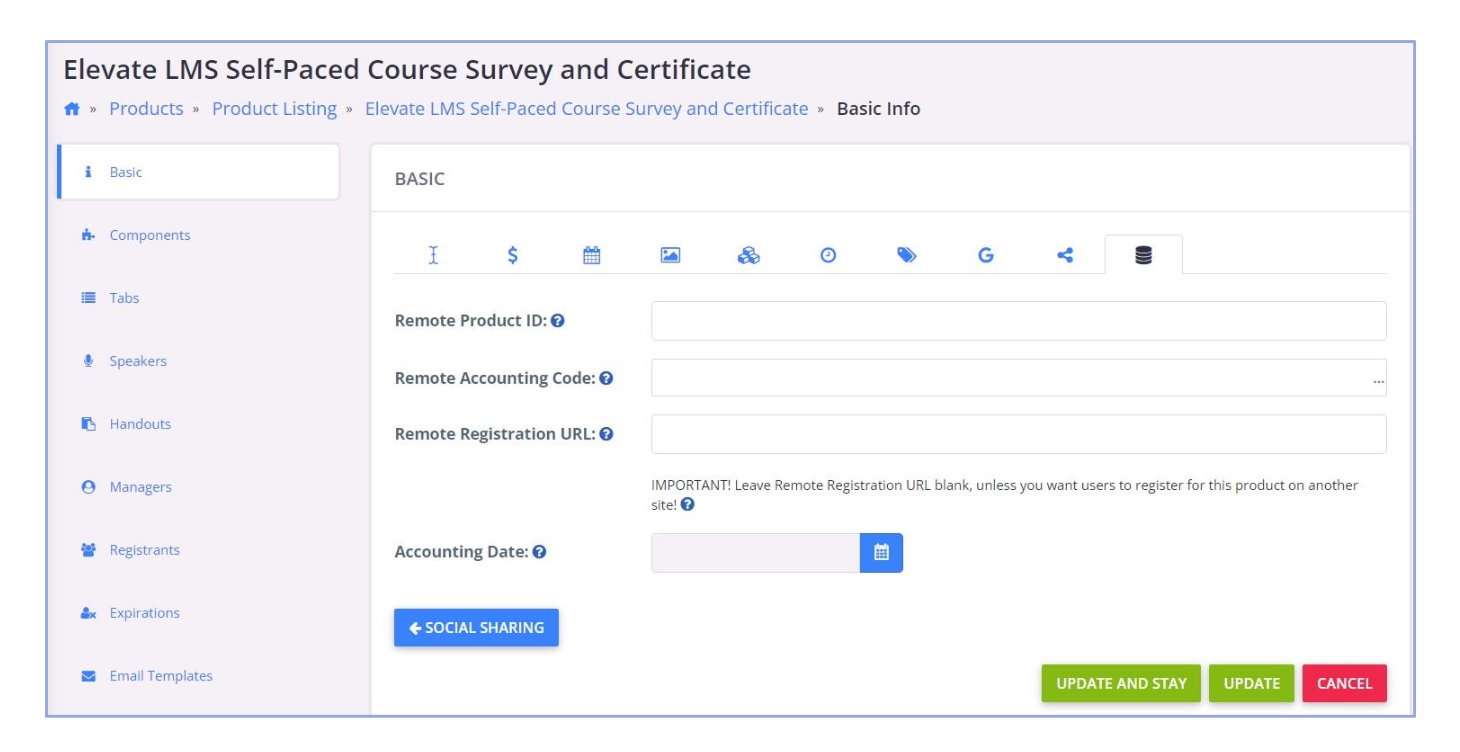
While the setup of Registration API happens mainly within your AMS, you need to connect all products that are for sale on your Elevate LMS to their corresponding products on your AMS store. To do this, use the Remote Product ID field to specify the ID of the product from the AMS store. To find the ID of the item on your AMS store, please refer to them for assistance.
If you are using Elevate LMS for browsing and redirecting your users to the store upon clicking the "Register" button, then you also need to fill in the Remote Registration URL field. This is the URL in the AMS where the user should be sent to for purchasing. Ideally, this URL will put the product in the "cart" of the AMS store, but at the minimum, it should take the user to the corresponding page for that item in the AMS store.
Was this article helpful?
That’s Great!
Thank you for your feedback
Sorry! We couldn't be helpful
Thank you for your feedback
Feedback sent
We appreciate your effort and will try to fix the article